
Why Watermarks Make Your Bio Link Look Unprofessional
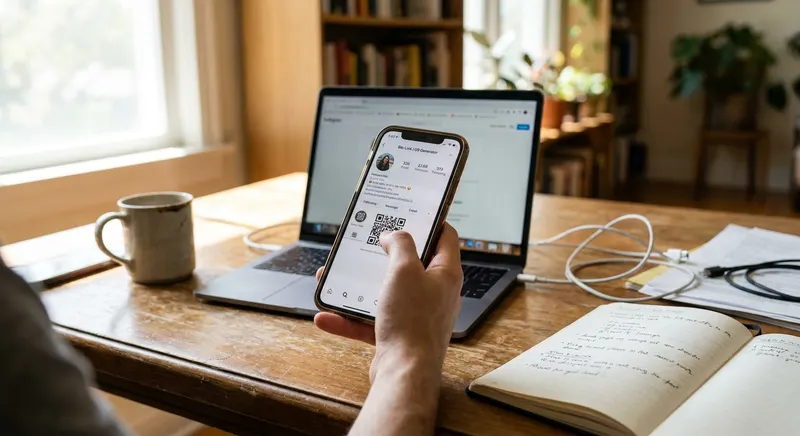
If you’re a creator setting up your first link in bio page, you might run into a big problem: that free link in bio no watermark promise isn’t always real. Imagine you’re a makeup artist with 4,200 Instagram followers. You add your booking link, your YouTube, and your favorite products. Then you check your page on your phone—and there’s a giant logo at the bottom, advertising the platform you used. Suddenly, your followers think you’re getting paid to promote that tool. A few even ask if you’re sponsored. Watermarks and platform logos make your bio link page look messy and confusing. Instead of being your personal hub, your page feels like an ad for a company. For creators building trust, having a clean page with no branding matters. It sends a clear message: this space is yours, not a free billboard for someone else’s brand.
When followers see a watermark, it can also suggest that the creator chose the tool based on price alone, rather than its quality or features. This can subtly undermine the creator's authority or expertise in their niche. A truly professional presentation avoids such distractions, keeping the focus squarely on the content and the creator's unique identity.
What Free Actually Means in Bio Link Tools
Lots of bio link tools say they have a free plan, but there’s usually a catch. One limits you to three links. Another adds a watermark unless you share the tool on social media. Some require your credit card just to sign up. Even basic things like changing your page’s color might be locked away. According to HubSpot, 64% of small creators quit tools that want payment info for free trials because they’re worried about surprise charges. A real free link in bio no watermark plan gives you the basics: unlimited links, the ability to change colors and fonts, simple analytics to track your clicks, and absolutely no platform branding. No logo at the top, no watermark at the bottom, and no tiny ‘powered by’ text hidden anywhere. Always double-check what you get. Some tools show you a clean page in the editor, but your visitors see a watermark. Test your page in an incognito browser before sending it out. Don’t just trust the preview.
How Bio Link Branding Hurts Your Growth
When your bio link has a watermark or logo, it messes up your page in three ways. First, it distracts people. Your followers click your bio link to see your stuff—not to look at another company’s logo. If their eyes get pulled away, they might not click anything. Second, watermarks make people question if your page is legit. If they see a random logo, they might wonder if your page is safe. Take a fitness coach with 6,800 followers: she tested two bio link pages, one with a watermark and one clean. The clean version got 31% more clicks on her training program link over two weeks. People trusted the page more and spent more time checking out her links. Third, visible branding can make you look sponsored or less independent. A podcast host with 3,400 TikTok followers got messages asking if she was paid to use her bio link tool—she wasn’t, but the watermark made it look like an ad. Once she switched to a bio link free no logo option, those questions stopped. Her audience even thought her page was custom-built, which made her seem more professional.
Setting Up Your First Watermark-Free Bio Link
Getting a link in bio without logo is easier than you think. First, pick a tool that clearly says it offers a free link in bio no watermark plan. Don’t just trust ads—read reviews from real creators and look for screenshots of live pages. After you choose, use an email you check often. Skip anything labeled optional during signup. You don’t need a profile photo or company name right away. Focus on three things first: get your custom URL, add your top three links, and choose a background color that matches your style. Your custom URL matters. If your name’s Jamie and you post fitness content, try for linkx.ee/jamiefitness or linkx.ee/jamie_fit. Avoid random numbers unless you already use them. A clean URL is easier to say in videos and easier for fans to remember. Put your most important link at the top—maybe your YouTube, your newsletter, or your shop. Add two more links below it. Starting with three links helps you see what your audience likes. If you add too many at once, you won’t know which matter most.
Customizing Your Page Without Design Skills
Even a no watermark link page should feel like you. The default white background and black text work, but they’re boring. Spend a few minutes tweaking colors and fonts to fit your brand. If you’re into beauty, try a soft pink or cream. Tech creators might want dark mode with white text. Travel creators often pick a blue that reminds people of the sky or ocean. Most platforms have preset color themes. They’re not super creative, but they make sure your page looks good on any phone. Avoid combos like yellow and white—they’re hard to read. Try a theme like ‘sunset’ or ‘ocean’ that’s already balanced. Test it on your phone and adjust if something looks off. Fonts don’t matter as much as you think. Avoid fancy scripts—just pick something clean and easy to read. If you only have one font choice, that’s fine. Your followers care about your content, not your typography. Don’t go overboard with features. Some tools let you add videos, music, or moving backgrounds. These slow your page down. A food blogger with 5,100 followers added a cooking video behind her links, but her page went from loading in one second to six. Mobile visitors left before it loaded. When she removed the video, her click rate doubled in three days.
Free Tools That Actually Remove Watermarks
Not every platform really gives you a bio link no branding page for free. Some remove logos but let you have only three links. Others give you unlimited links but add branding if you get over 1,000 views. Always read the full details, not just the front page. Linkx.ee offers a free plan with no watermark and no link limits. You can create your bio link page without a credit card. The free version lets you pick your colors, set a custom URL, and see basic analytics. Pages load fast on any device. There’s no ‘powered by’ text and no logo unless you add your own. When you check out different tools, test three things: make a page and view it in an incognito browser to catch hidden branding, add ten links to see if the platform keeps up without slowing down, and open your page on your phone using mobile data. Some platforms load fine on your laptop but take forever on a phone if they use heavy tracking scripts.
What to Do After Your Page Goes Live
Putting your bio link online is just the start. First, update your Instagram or TikTok bio with your new URL. Double-check every character—one mistake breaks the link. After updating, click it from your profile to make sure it works. Ask a friend to check it too, since some links act weird on different phones or apps. Next, watch your analytics for a week. Most free tools give you basic click numbers. You don’t need fancy charts yet—just see which links get the most clicks. If your YouTube link gets 80% of the clicks and your email signup gets 2%, you know what people want. Move popular links higher and delete any that nobody uses after two weeks. Keep your page fresh. A bio link with the same three links for six months feels abandoned. When you post a new video or product, put it at the top for a week. Remove links that aren’t current. Statista says social media users expect updates, and a current bio link keeps your fans interested. Promote your bio link in your content. Instead of just saying ‘link in bio,’ say ‘visit linkx.ee/yourname for the full recipe.’ Being specific works better. A photographer with 7,900 followers tried saying ‘link in bio’ versus ‘visit linkx.ee/photorachel’ in her captions. The specific URL got 43% more clicks in a month.
Common Mistakes New Creators Make
New creators often add too many links right away. A bio page with fifteen links overwhelms people. They don’t know where to start, so they leave. Keep it to five links for your first month. Add more only when you know each one matters. Every link should help your audience or your creator business. Another mistake is using vague link titles. Buttons that say ‘Click here’ or ‘Check this out’ don’t tell anyone what to expect. Be clear. Instead of ‘My YouTube,’ write ‘Watch my cooking tutorials.’ Instead of ‘Shop,’ use ‘Buy my presets.’ The clearer your titles, the more clicks you get. Many creators forget to test their links after adding them. A skincare creator with 4,600 followers linked her Amazon store but typed the URL wrong. For three weeks, every click went to an error page. She only found out when a follower messaged her. Click every link at least once a week, and update your bio page if you change a URL elsewhere. Ignoring analytics is another problem. Free tools show click data for a reason. If you never look, you’ll miss easy wins. A travel blogger linked her blog, Instagram, and email list. Two months later, she realized her email link got zero clicks. She swapped it for her print shop and made a sale within a week. One small change, based on real numbers, made a big difference.
When to Consider Upgrading
Free plans are great for getting started. But sometimes, you’ll need features only paid plans have. Don’t upgrade just because a platform keeps suggesting it. Only pay when you’re actually missing something important. If you want to collect emails through your page, you might need a paid plan for forms. Want to schedule links to appear or disappear? That’s usually a paid feature. Adding video thumbnails or product images might also require an upgrade. But if the free plan does what you need and your audience likes it, stick with it. A musician with 8,300 followers used a free bio link for eight months. She only upgraded when she started selling tickets and needed a feature for time-sensitive links. Upgrading sooner would have wasted money. Watch out for platforms that nag you with upgrade ads or limit free features over time. If the free version gets worse, switch to a better tool instead of paying. There are plenty of options that treat free users with respect.
Common Questions About free link in bio no watermark
Are there truly free link in bio tools?
Yes, some platforms offer entirely free plans that include no branding or watermarks. Always check the features list carefully and test the page yourself to confirm.
Will a watermark hurt my brand?
Watermarks can make your page look less professional and distract your audience. They may also suggest your content is less independent or sponsored.
Can I customize a free bio link page?
Many free plans allow you to change colors, fonts, and your custom URL. These options help match your page to your personal brand without extra cost.
Do free bio link pages include analytics?
Most free tools provide basic analytics like click counts for your links. This data helps you understand what content interests your audience the most.
Start Building Your Clean Bio Link Today
You don’t need design skills, a big budget, or tech knowledge to make a professional bio link page. Pick a tool that offers a free link in bio no watermark plan, like Linkx.ee. Set up your custom URL, add your three most important links, and pick colors that match your brand. Then publish your page and update your social media bio. Test your page on your phone before sharing it everywhere. Click every link to make sure they work. Ask a friend to check your page and share what they see. Make changes if needed. Mention your bio link in your videos, stories, and captions. Give people a reason to visit—be specific instead of just saying ‘link in bio.’ Check your analytics every week. Move popular links higher and remove ones nobody uses. Update your page whenever you have new content or a new project. Your bio link should show what you’re excited about right now, not what you cared about months ago. Your bio link should show off your brand—not someone else’s. A clean page with no watermark looks more professional, builds trust, and makes your audience more likely to click. Start with a free plan that puts your brand first. You can always upgrade later if you need more features.